Permission Setup with Salesforce Personalization — Guide for Playground Deployment
How to use this chapter: the first part explains the access model and recommended setup. The second part is the implementation walkthrough you can follow step by step.
What this step is about
Permission setup isn’t just an administrative formality. It’s the step that determines whether the person configuring the environment will be able to access Personalization, work with data from Data Cloud, and actually build the first use case end-to-end.12
That’s why this guide follows a simple deployment model:
for build purposes, assign the working user Personalization Admin first.
Personalization Admin
Salesforce provides standard permission sets as a recommended starting point, and a user can have multiple permission sets assigned at the same time.345
This doesn’t need to be the final security model for production. It’s a working model designed to enable a smooth build in the playground. Once the solution is ready, access can be divided more granularly.35
What each set is and when to use it
Personalization Admin
This is the permission set for someone who needs to configure and manage Salesforce Personalization more broadly — including from an administrative and configuration perspective.3
Personalization User
This is the set for someone working on personalization features from a business-operational angle — for example, with personalization points, templates, experiments, or recommenders.3
Practical approach for playground build
During the build phase, one person is typically doing several things at once: setting up the foundations, building use cases, testing results, and verifying that everything works end-to-end. Start with Personalization Admin for implementation access, and add Personalization User later if this same user also needs broader business-operational workstreams.35
Recommended model for the playground
For a playground deployment, follow this model:
1. One working user for the build
This is the user on which the team configures and tests the first use cases.
2. Assign Personalization Admin to this user
3. Optionally add Personalization User when needed
If the same user also works on business-operational personalization tasks, add Personalization User.35
4. If analytics is in scope, add the analytics permission set too
If the user needs to work with Personalization Intelligence, also assign Personalization Intelligence User.6
This is a sufficient and practical model to get started. A more complex role separation is worth doing only after the playground is up and running and the full path has been confirmed to work.
Implementation Section: the conceptual overview ends here. If you already understand the permission model, start with the guide below.
Step-by-step guide
Step 1. Prepare the working user for configuration
Select or create the user on which the playground build will be performed. This should be one specific working user, not a representation of all roles in the organization.
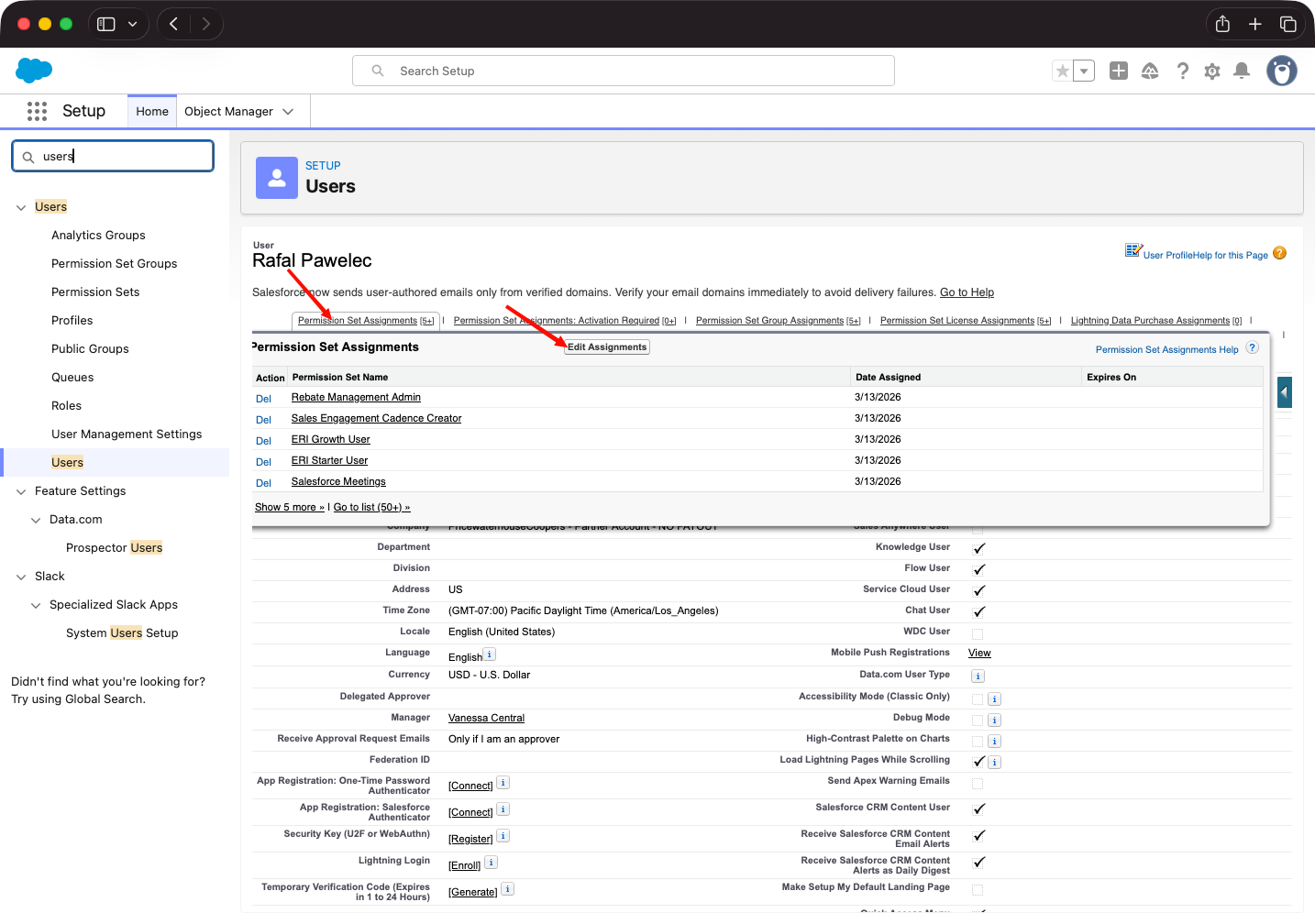
Step 2. Go to permission set assignment
Navigate to:
Setup → Users → [User] → Permission Set Assignments → Edit Assignments4
Step 3. Assign Personalization Admin
Add the standard permission set Personalization Admin.34
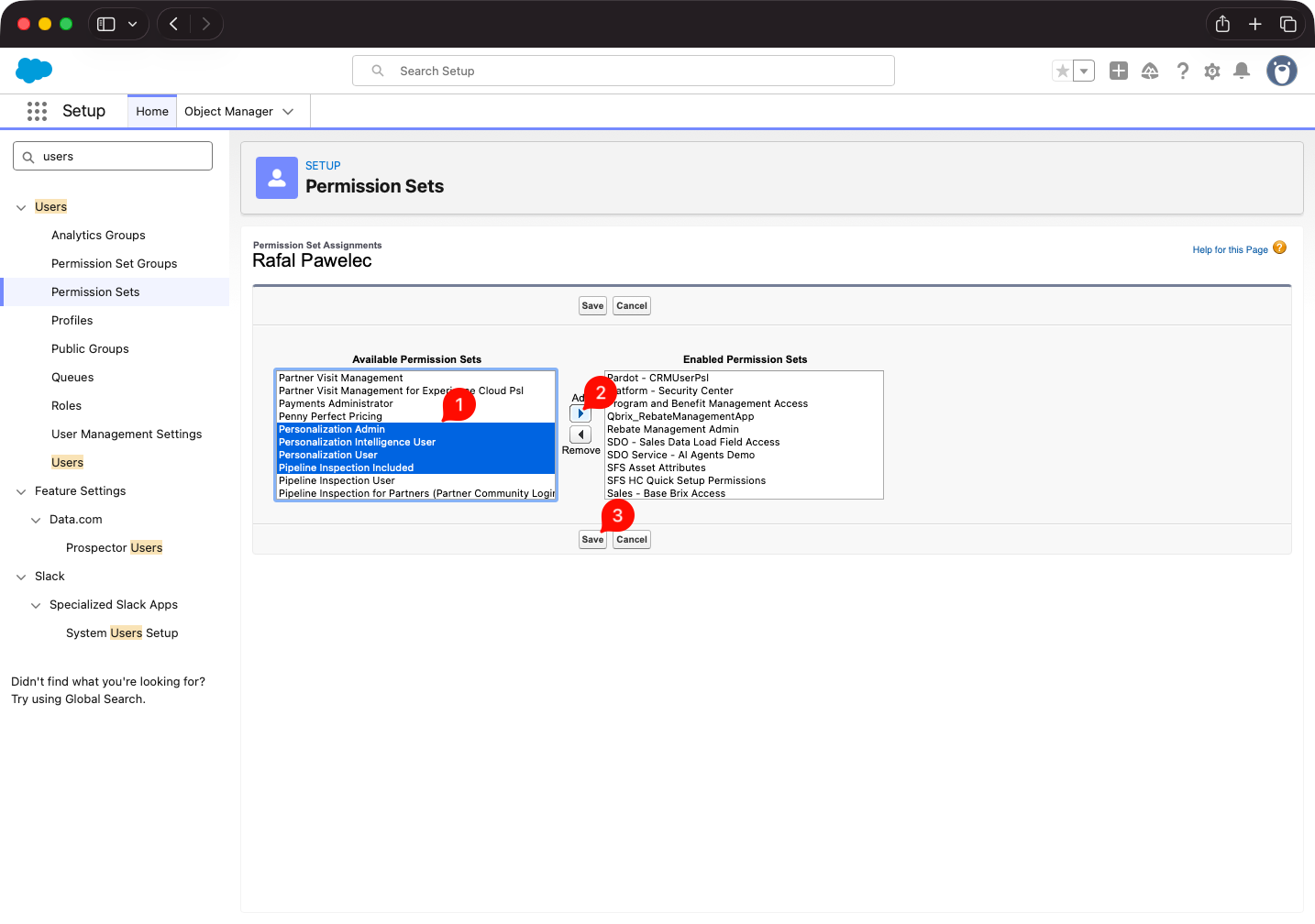
Step 4. Add Personalization Intelligence User only if it’s in scope
If the same user needs to work with Personalization Intelligence or analytics dashboards, also assign Personalization Intelligence User.6
Step 5. Log in and verify functional access
Confirm that the build user:
- can see the Personalization app,
- has access to data spaces and data graphs,
- can work with personalization points,
- can work with response templates,
- can work with recommenders and experiments.123
Shortest version to remember
If you’re building a Salesforce Personalization playground, don’t overcomplicate it at the start:
- prepare one build user,
- assign
Personalization Admin, - optionally add
Personalization User, - if needed, add
Personalization Intelligence User,
Assigning permissions is only the first gate. Salesforce Personalization depends on a properly configured Data Cloud foundation, so the next required step is Data Cloud setup.
Sources
Footnotes
-
Salesforce Help, About Salesforce Personalization https://help.salesforce.com/s/articleView?id=mktg.persnl_basics.htm&language=en_US&type=5 ↩ ↩2
-
Salesforce Help, Salesforce Personalization and Data 360 Setup https://help.salesforce.com/s/articleView?id=mktg.persnl_setup.htm&language=en_US&type=5 ↩ ↩2
-
Salesforce Help, Personalization Standard Permission Sets https://help.salesforce.com/s/articleView?id=mktg.persnl_setup_assign_standard_permission_sets_to_users.htm&language=en_US&type=5 ↩ ↩2 ↩3 ↩4 ↩5 ↩6 ↩7 ↩8 ↩9
-
Salesforce Help, Assign a Standard Permission Set https://help.salesforce.com/s/articleView?id=mktg.persnl_setup_assign_standard_permission_set.htm&language=en_US&type=5 ↩ ↩2 ↩3 ↩4
-
Salesforce Help, Permission Sets https://help.salesforce.com/s/articleView?id=platform.perm_sets_overview.htm&language=en_US&type=5 ↩ ↩2 ↩3 ↩4
-
Salesforce Help, Assign the Permission Set for Personalization Intelligence https://help.salesforce.com/s/articleView?id=sf.persnl_setup_permissions_analytics.htm&language=en_US&type=5 ↩ ↩2